Computer Nerd Specialist
Commission Junction Network
Rakuten LinkShare Network
ClickBank Affiliate
Avangate.com Affiliate
Amazon Associate
36234 Canyon Terrace Dr. 
Yucaipa, CA 92399 

Phone: (909) 953-3418

Fax: (909) 446-8098

katocybersail@verizon.net

Mike and Michelle Brittingham -- Local Real Estate Agents

elitelogo.gif

Computer Nerd Specialist / Internet Marketing

Home | Products | My Store | Our Services | Location | Contact Us | Thankyou!

CNS1logo.jpg

Welcome - Home Business For Computer Repair and Internet Marketing!

This site is dedicated to providing computer services, information about solving common computer problems (blog), software sales, and internet marketing.  Check out our season promotions!
 

This site  The Web 

air1.JPG

Computer Tips Blog!

Thursday, December 6, 2012

System Mechanic 11.5 Professional review.
  • "This system repair software scans your computer, diagnoses the problems, and then repairs and restores the components that are causing the problems. Additionally, it optimizes your operating system so that it can work the way it did when it was brand new"

  • "The large feature set will help you deal with a wide range of problems"

  • "System Mechanic does all the heavy lifting for you"

  • "It has a simple interface"

  • "It has a small foot-print, and it won't drag down your system"

  • "It works alongside other internet applications such as Internet security suites"

  • "The license allows you to install it on multiple computers at the same time"

  • "Most of the features focus on system clutter"

  • "System Mechanic Professional can detect and repair bad Internet connections, and easily update your PC drivers"

  • "It can even optimize your solid-state drives which makes them last longer"

  • "System Mechanic Professional also includes many automatic monitoring tools that will alert you when your system needs attention"

  • "iolo continually works on improving it, and they send updates all the time"

  • "Overall we think System Mechanic Professional is one of the best system repair programs out there"

  • "It's easy to use, and it won't slow your computer down"

  • "While no system software is perfect, System Mechanic Professional comes awfully close"

  • 11:09 am pst

    Saturday, November 10, 2012

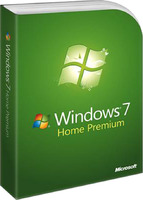
    Windows 7 Tools
      There are two programs that are built into this operating system that are very useful for keeping your pc running optimately.  They can be found in the Accessories/Systems Tools folder in the Start menu. There you will see two programs; Disk Cleanup and Disk Defragmenter.
    There is also an Error-checking program so that you can check your hard drive for any problems that could be slowing your computer down. 
     
      Looking forward to the recent release of Windows 8 we will see a more streamlined ease-of-use that will allow us to not have to think about making things work better.  For more info on Windows 8 please refer to : http://www.microsoft.com/en-us/default.aspx
     
      For those of you who may have questions about problems you may be experiencing with your pc, please let me know.  I would be glad to answer any questions to assist you with your computer problems.
     
    12:09 pm pst

    Thursday, October 4, 2012

    Computer Tips and Tricks!!!!!!!!!!!!!!!!!!

    Computer Tips and Tricks

        Reference:  http://procomputertech.com/top-10-computer-tips-and-tricks-for-security-in-2012/

    1.    Avoid E-mail Viruses

    2.    Scan Your Flash Drives for Viruses

    3.    Avoid Downloading the files that you are not sure about

    4.    Always update the startups in your system

    5.    Install anti-virus software and keep it up to date regularly

    6.    Always scan e-mail attachments with anti-virus software

    7.    Never open any attachments, in your e-mail, automatically

    8.    Always install and maintain professional anti-virus software on your system


    Fixing computer problems can be frustrating and time consuming.  I suggest keeping your computer updated and maintained properly.

    Reference:  http://www.microsoft.com/athome/troubleshoot101

    A favorite internet site is maximumpc.com for finding information about how to accomplish doing things and troubleshooting computer problems.  They have a vast data base of information to search through. 


    I recently found a site that is very informative about Windows 7 tips, tricks, and secrets for using this operating system.  Reference: http://www.techradar.com/news/computing-components/operating-systems/software/85-windows-7-tips-tricks-and-secrets-643861


    The Importance of Computer Maintenance

    A friend of mine asked me if I knew what is wrong with his computer.  He told me that he thinks it could be infected with a virus and that it just does not run very well.

    I�d like to recommend that you maintain your computer like you maintain your car and keep it tuned-up and running efficiently.  Most problems can come from a registry file that is cluttered with entries and keys that are inappropriate and ineffective for running your pc with an optimal configuration.  I recommend �System Mechanic�  to maintain your computer and optimize registry, memory, and internet configurations.  It is my choice for maintaining a pc to run efficiently.  Also �IOLO� offers a very efficient �antivirus� program to help keep your pc worry free from infections, malware, and spyware.


    9:36 am pdt

    Sunday, September 16, 2012

    Setting Network IP addresses (Potential Conflicts)
         Alot of times there may be an IP address conflict with other systems on your network.  This may be a difficult task for some who is not familiar with correcting this problem. Home network IP addresses are as follows : 192.168.1.xxx.  With this format in mind you will need to find your network adapter, which is located in the "Network and Sharing Center" (Windows 7). Once you have done that you would click on the "Change adapter settings" located on the left side of the window.  You will then see an icon that is your "network adapter"; Right click on the icon and select "properties" from the menu.  A small window will come up showing the configuration of your network adapter.  Scroll down and the click on the "Internet Protocol Version 4 (TCP/IPv4)". 
          Next you will click on the "Properties" Button; a new window will come up showing you the settings for your IP address.  There are two radio buttons to choose from; "Obtain an IP address automatically" and "Use the following IP address".  You would select the second choice and enter a fixed IP address for your system (example: 192.168.1.133). It might be a challenge to pick an address that would be suitable for your system.
           So, if you want to see the current IP address that your system is using, you will need to go back to the window that shows your network adapter. Left click on the adapter icon.  You will notice some tabs above the icon; select or click on the tab that says "View status of this connection". A window will come up showing the "Network Status". Then click on the button that says "Details"; there will be another window labeled "Network Connection Details".  You will notice that the address for your system will be indicated on the line labeled "IPv4 Address".
            Now, back to the configuration. Select/Click on the "Use the following IP address" radio button. In the space provided enter the IP address that you saw in the "Network Connection Detail" window (example: 192.168.1.145).  Next is the "Subnet Mask" and the "Default Gateway".  The "Subnet Mask" should display automatically without you having to enter it; it should be : 255.255.255.0.  The "Default Gateway" will be the address of your router as follows: 192.168.1.1.  The last thing you will need to do is set the address for "Preferred DNS Server" which will be the same as your "Default Gateway" address.  It's done; click "OK" and "Close" and the settings are complete.
            Hope this was helpful for you.  If you still need more info on this topic please refer to the following : http://www.ehow.com/how_7371661_resolve-ip-conflict.html
     
     
    1:26 pm pdt

    Tuesday, September 11, 2012

    My Site Updates
    Welcome to my web page.  I am now an Amazon Associate and have add alot of interesting links for you to browse through.  Amazon has many produsts to choose from.  Please check out my "Products Page" in the navagation area near the top of this page.  I will be posting some interesting research items for those computer geeks who want to learn about computers and computer maintenance.
     
    Here is a tip for you windows user on how to recover your user password. Click on the following link: http://www.maximumpc.com/article/howtos/how_to_recover_your_lost_windows_user_account_password
    4:29 pm pdt

    2012.12.01 | 2012.11.01 | 2012.10.01 | 2012.09.01 | 2012.08.01

    Link to web log's RSS file

    We would like to hear from you!
    Please send Comments or Questions below:

    Name:
    Email Address:
    Comments

    Form provided by Freedback.

    Advertising Section:  Please feel free to check out ads.

    nyc1.jpg

    sm_left_200px.jpg

     Keep your PC running fast, clean and error-free with System Mechanic’s award-winning arsenal of tools that prevent problems before they arise. Repair stubborn errors, improve startup and program speed, tune system settings, eliminate performance bottlenecks, clean up clutter, and prolong your PC’s life
     

    LinkShare Money Mania -   Do Not Delete-

    Please get in touch to offer comments and join our mailing list.

    Computer Nerd Specialist - 36234 Canyon Terrace Dr. - Yucaipa, Ca 92399